ProPresenter Mastery: Running Worship Slides Without Mistakes
A pro slides workflow for ProPresenter 7: build the service as a playlist, use groups and arrangements, set one template, and hand the operator a real cue so the wrong-slide moment stops happening.
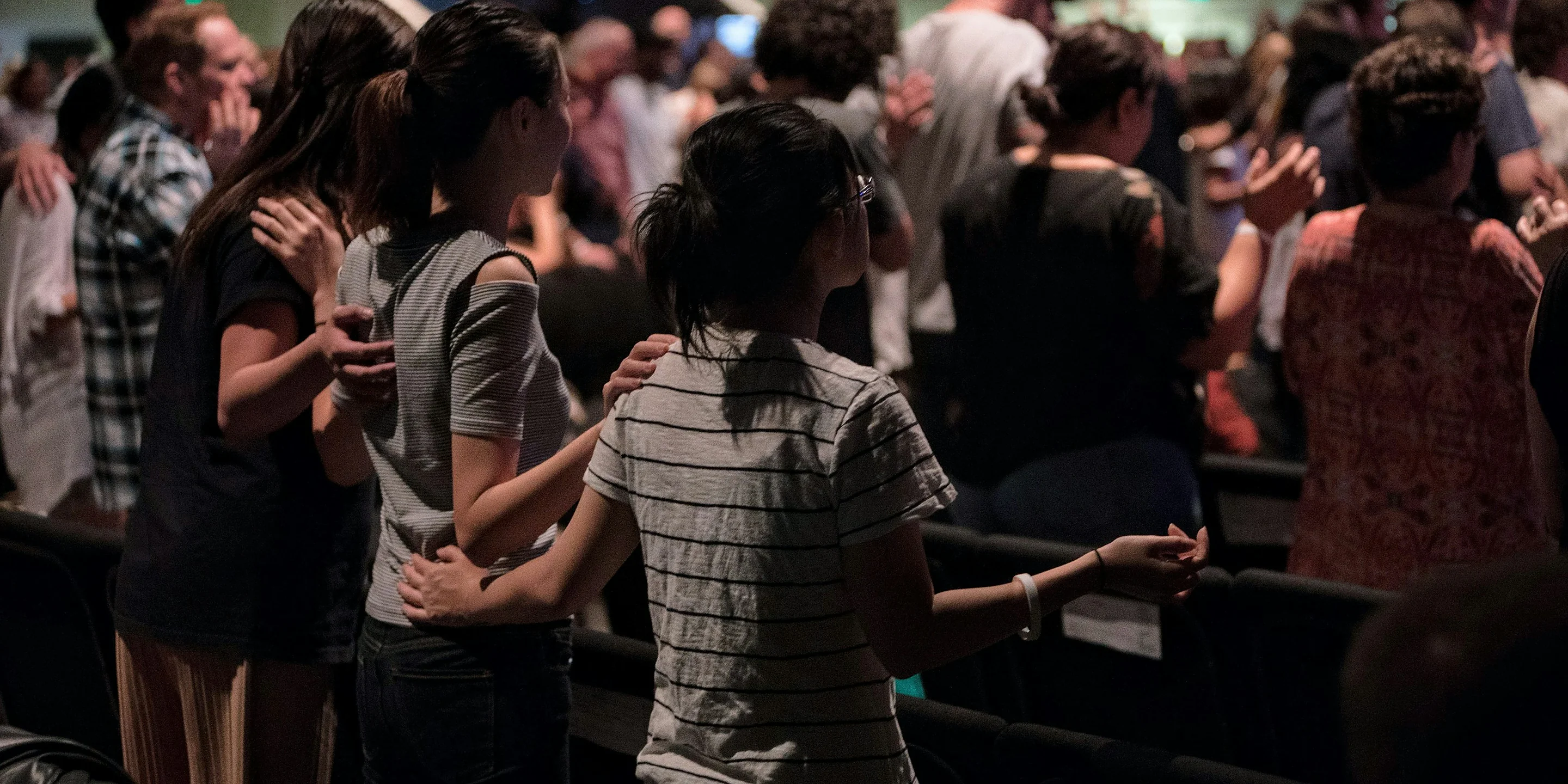
The band hits the last chorus, the room is singing with their eyes closed, and the screen still shows verse two. Twenty seconds crawl by before anyone fixes it. In that gap, half the room quietly stopped singing and started reading.
Slides are the one part of Sunday that only gets noticed when they go wrong. A great operator is invisible. The words are simply there, a half-beat ahead of the leader, and nobody in the seats ever thinks about the screen. That kind of clean run is not luck, and it does not come from a more expensive computer or a sharper volunteer. It comes from a workflow you build during the week and a handoff you take seriously on Sunday morning. Here is how to run ProPresenter so the wrong-slide moment stops happening at your church.
Build the whole service as one playlist
In ProPresenter 7, a playlist is your running order for the morning. Build it early in the week, top to bottom, so that when Sunday arrives you are simply following a plan you already trust instead of hunting for the next song while a thousand people wait on you. The goal is a booth where the hard thinking happened on Thursday.
- Put every element in service order. Opener, each song, the welcome, giving, the sermon graphics, the response song, the send-off. When it all lives in one playlist, nobody scrambles between segments.
- Name each presentation clearly. Song title and key is plenty. A file that reads "Great Are You Lord (A)" beats one called "song3final_v2."
- Drop a logo or motion between segments. A resting slide gives the booth a safe place to land while the leader talks, so the wall is never stuck on a lyric that no longer fits.
- Save the playlist the moment it is set. A finished order that survives a laptop restart is worth ten minutes of care on Thursday.
Group and arrange your slides so the set can change
The single best habit in ProPresenter is grouping. Label each section of a song, then color it, so whoever runs slides reads the structure at a glance.
- Group by section. Tag your slides Intro, Verse 1, Chorus, Bridge, and Tag, and give each group a consistent color. Now the person at the desk sees the shape of the song, not a wall of identical text boxes.
- Use arrangements for last-minute changes. An arrangement lets you reorder those groups without rebuilding a single slide. When the leader decides Sunday morning to sing the bridge twice and skip verse three, you make a new arrangement in a few clicks and the whole thing still flows.
- Keep one master version of each song. Edit the words in one place, and every arrangement inherits the fix. This is how you avoid the typo that only lives on one forgotten slide.
Set one template so every slide looks the same
Nothing says amateur like fonts and text positions that jump around from song to song. A theme, or template, locks your look so every slide matches.
- Pick a font big enough for the back row. If you cannot read it from the last seat, it is too small, no matter how good it looks on the laptop.
- Cap it at two lines per slide. More than that and people lose their place. Split long lines into more slides instead of shrinking the text.
- Build in high contrast. Light text on a busy background disappears. A subtle drop shadow or a darkened band behind the words keeps lyrics readable over motion.
- Check it on the actual screen, not the computer. Colors and margins look different once they hit your projector or wall. Walk to the back and confirm before anyone arrives.
Keep the backgrounds behind the words, not in front of them
A slow, dark motion loop or a soft still image lets the lyrics carry the moment, while a bright, busy video pulls every eye off the words and onto the footage. Pick backgrounds that move gently and stay dim, then trust your congregation to fill in the atmosphere with their own worship. Store your favorites in the media bin so your volunteer can grab the right feel in seconds instead of scrolling through a folder of a hundred clips during the offering.
- Favor one calm loop per song. Switching backgrounds mid-verse is distracting, and the eye reads it as a mistake even when it was intentional.
- Darken anything under text. If a background competes with the lyrics for attention, the lyrics lose, and so does the room.
- Match the mood, not the lyrics literally. A quiet field of light behind a reflective song does more than a stock video of hands raised.
Give your volunteer a real handoff, not a cold start
Most slide mistakes trace back to one thing. A willing volunteer got handed the laptop five minutes before the service with no cue and no map, then took the blame for a system that was never explained to them. Set them up to win instead.
- Use the stage display. ProPresenter can show the current slide, the next slide, and a clock all at once on a monitor built just for the booth. Seeing what comes next is the whole job.
- Write down the changes. If an arrangement differs from the recording, note it. "Second chorus, straight into bridge" on a sticky note prevents a guess at the worst moment.
- Advance on the first word. The words should change as the new line begins, following the leader's voice, never trailing behind it.
The words should arrive a half-beat before the voice, never after it.
Rehearse the slides like an instrument
Your operator is part of the band, so they belong at rehearsal. Running the set with the screens live catches the awkward transition, the repeated tag, and the spot where the leader always adds a spontaneous line. Fixing those on Tuesday means they never surprise anyone on Sunday. Our guide to running a worship rehearsal folds the tech booth into the run-through instead of treating it as an afterthought.
Rehearsing together also builds the quiet trust that carries a service. When the booth knows the leader's habits and the leader trusts the words to keep up, the whole room feels settled without knowing why.
Have a plan for when something breaks
Even a sharp operator hits a snag. Software freezes, a laptop lags, someone loses their place. What separates a seasoned booth from a panicked one is not a flawless morning, because flawless mornings are rare for anyone, but the calm, practiced way they climb back on track when the unexpected finally shows up. Recover well, and no one remembers.
- Learn the clear-to-logo hotkey. A resting screen always beats a wrong lyric. When you fall behind, clear to the logo, find your place, and come back clean.
- Know how to jump. Practice clicking straight to the chorus when the leader skips ahead, so you are never stuck clicking through four verses to catch up.
- Have a backup ready. A second person who knows the setlist, or a printed running order sitting next to the laptop, turns what could be a five-minute meltdown into a quiet shrug that the congregation never even notices.
Great slides are a craft, and a volunteer can learn it faster than you would think. If you want to take someone from nervous to confident behind the desk, the ProPresenter course in the Academy walks through this exact workflow step by step. You can also pair it with our lighting guide, since stage lighting and slides work together to set the room. Get the words right, and you free your church to keep its eyes closed and its hands up.
Common questions
Which version of ProPresenter should we use?
How do we make sure the operator follows the leader and not the other way around?
Can ProPresenter send lyrics to our live stream?
Learn ProPresenter the right way
The Academy walks a volunteer operator from a cold start to a clean, confident run, so your screens stop stealing attention and start serving the room.